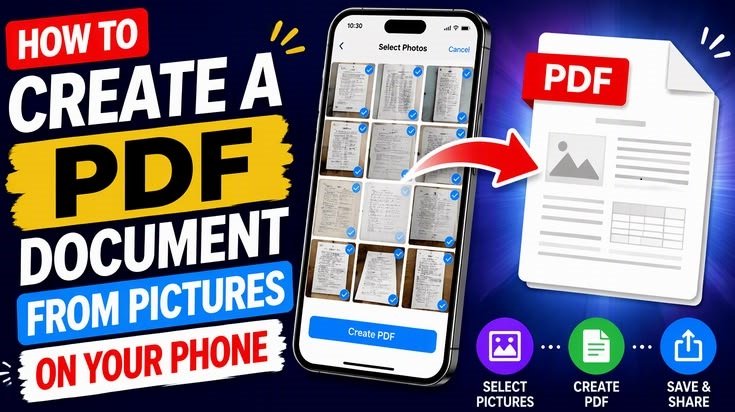
Nowadays, creating a PDF using a mobile phone has become very easy.
Additionally, How to create a PDF from a mobile phone can help you convert photos into a PDF.
Moreover, you can turn an important document into a PDF. You can also combine multiple pages into a single file using your smartphone.
Firstly, this article explains How to create a PDF from a mobile phone on Android.
Additionally, it covers converting photos into a PDF and reducing PDF file size.
What is a PDF?
The full form of PDF is Portable Document Format. It is a file format in which the layout, text, and images of a document appear largely the same across different devices.
PDFs are used for job applications, study notes, important documents, bills, receipts, and filling out online forms.
1. How to create a PDF from photos on your mobile?
If you have a photo of your Adhara card, mark sheet, or any other document on your mobile, you can convert it into a PDF.
To do this, follow these steps:
- Open the photo or gallery app on your mobile.
- Select the photo you want to convert into a PDF.
- Look for the ‘Share’ or ‘Print’ option.
- If the ‘Print’ option is available, select it.
- In the printer selection menu, choose ‘Save as PDF’.
- Tap the provided button to save the PDF.
- Enter a name for the file and save it to your mobile.
Note: These options may vary across different mobile devices and gallery apps. If you do not see a ‘Print’ option, try the alternative methods described below.
2. How to create a PDF using Google Drive?
Using Google Drive, you can scan paper documents and convert them into PDFs.
Method:
- Open the Google Drive app on your mobile device.
- Select the ‘Scan’ option, available via the camera icon or the ‘Add’ button.
- Place the document in front of the camera in a well-lit area.
- Take a photo and adjust the edges as needed.
- If there are multiple pages, add them.
- Select the option to save and generate a PDF file.
This method is useful for those who need to scan job application forms, certificates, or educational documents.
3. How to convert a Word file to PDF?
If you have a document created in Word, you can use an app like Microsoft Word to convert it into a PDF
.Open your file in the Word app.
Go to the ‘File’ or menu option.
Look for an option like ‘Export’ or ‘Save a Copy’.
Select the PDF format if available.
Save the file to your mobile device.
The names of options may vary across different apps and their versions.
4. How to create a PDF using online PDF tools?
If your mobile device does not have an option to create a PDF, you can use a reliable online PDF tool.
General procedure:
- Open the PDF tool in your mobile browser.
- Upload the photo or document.
- Select the option to create a PDF or ‘Convert to PDF‘.
- Download the generated file.
- Open the downloaded PDF and check that all pages are correct.
Security Tip: Do not upload your Aadhaar card, bank statements, passwords, or other sensitive documents to any unknown website. For important documents, use an offline method on your mobile device or choose a trusted service.
5. How to reduce the size of a PDF file?
Sometimes, when filling out online forms, the size of a PDF file may exceed the specified limit. In such cases, you can use a tool like a PDF compressor.
To do this:
- Open a reliable PDF compression tool.
- Select your PDF file.
- Choose the desired compression option.
- Download the file once it is ready.
- Open the file and check that the text and images are clearly visible.
Keep in mind that image quality may decrease after compression. If the document is for a government recruitment process or an examination, be sure to check the file size and quality requirements specified on the relevant website.
Common mistakes made when creating PDFs
Keep these points in mind when creating PDFs:
- Ensure that the photos of the documents are not blurry.
- Include all necessary pages in the PDF.
- Use a filename that is easy to identify.
- Open the PDF and check all the pages.
- Adhere to the specified file size and format requirements for the online form.
- Avoid uploading personal documents to unfamiliar websites.
Frequently Asked Questions (FAQ)
Can PDFs be created for free using a mobile phone?
Yes, you can create PDFs without any extra cost using various mobile apps or the built-in ‘Print’ or ‘Scan’ features available on your phone.
Can photos be converted into PDFs?
Yes, photos can be saved as PDFs using the ‘Print’ option. You can also use scanning or file-conversion apps if needed.
Is a computer necessary to create a PDF?
No, most routine PDF creation tasks can be handled directly from a mobile phone.
Conclusion. Creating PDFs from your mobile device is a simple and useful task. You can convert photos, scanned documents, and Word files into PDFs. By choosing the right method, you can keep your important documents organized and use them when filling out online forms.
official Android helphttps://support.google.com/android/
For More Information about Android features ,visit the official Android d Help website.
Learn how to reduce PDF file size on your mobilehttps://techrojgar.com/mcc-neet-counselling-2026-mcc-dates-process-fees/
1 thought on “How to Create a PDF on Your Mobile: (5 Easy Methods)”